
Many SMBs and MSPs are now migrating their devices to Intune management and why not, M365 Business Premium is tremendous value for money and it removes the requirement for on-site hardware to maintain.
I’m not going to run through and entire end-to-end configuration for a new tenant in this post, but instead flag up some best practices and things you should watch for as you are configuring (especially as I find often many of them are missed)
Entra
Before we start configuring Intune, we need to start with some Entra settings which are often overlooked:
Device Settings (withing the Devices menu)
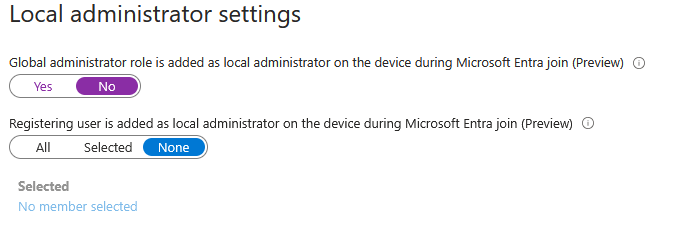
Local administrator settings – Make sure the registering user is NOT set as local admin:
Enable LAPS (everyone should configure LAPS)

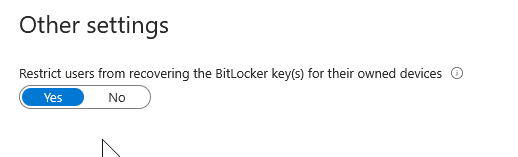
A very important one, make sure users can’t access their BitLocker keys, otherwise they can just boot into recovery mode, unlock with the key and have admin access via the command prompt.
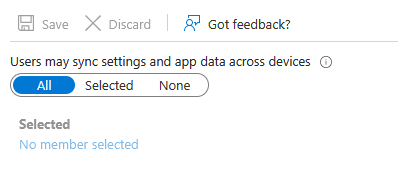
Enterprise State Roaming
If licensed, this allows Edge sync and some other low level app settings to follow between devices (think UE-V if you’re old enough)
It’s free and doesn’t use any of your storage…
User Settings (in the Users menu)
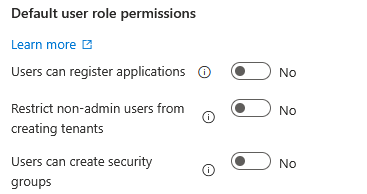
Users can register applications – Set this to No, only admins should be able to register apps
Restrict non-admin users from creating tenants – This should be set to Yes, you don’t want users spinning up their own tenants
Users can create security groups – Set this to No, again, this is an admin thing
Restrict user access to Microsoft Entra admin center – A bit of a no-brainer, it’s an “admin” center after all

Group Settings (Groups – General)
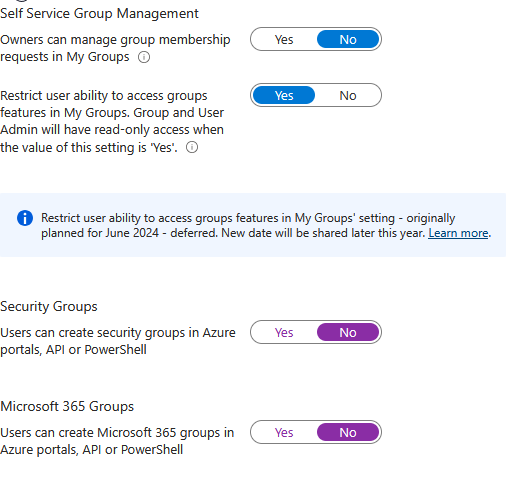
Restrict user ability to access groups features – Set to Yes
Users can create security groups in Azure portals, API or PowerShell – Set to No, this is an admin task
Users can create Microsoft 365 groups in Azure portals, API or PowerShell – Also a No
Enterprise Apps (Enterprise Apps – Consent and permissions)
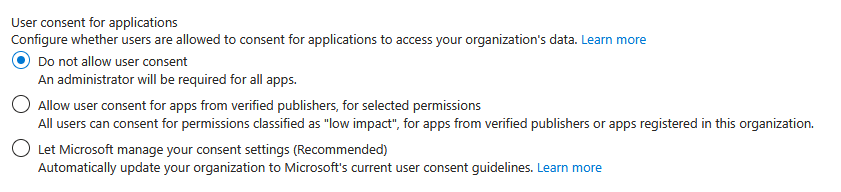
User consent for applications – Do not allow user consent
Admin consent Settings – Admin consent requests
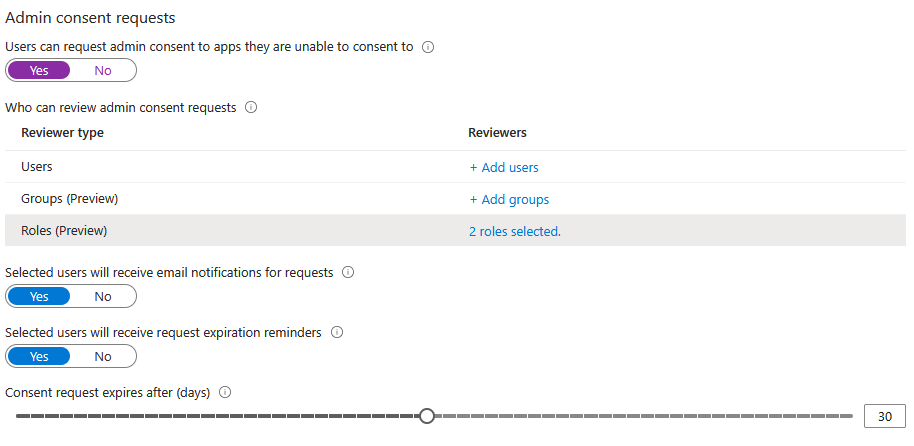
Personal preference, I would normally suggest setting to Yes because otherwise users are completely blocked, at least this way there is an approval flow. Select users, groups or roles to approve (try and avoid users, I would go with roles)
Conditional Access
Plenty of excellent posts already covering this so I’ll just mention break-glass accounts. Make sure you have at least one, stored securely and exempt from your CA policies. You can MFA protect it with a hardware token, again securely stored (and ideally two of them in case on breaks)
Here is a blog post series covering the configuration
Tenant Restrictions
Unless you work closely with other tenants, it is best to lock down any cross-tenant access
Configure Tenant Restrictions – Microsoft Entra ID – Microsoft Entra External ID | Microsoft Learn
Branding
Whilst not a “security” setting, when logging into apps or setting up a machine for the first time, it’s a safety blanket for your users to see your organisation branding.
In the menu click Custom branding, hit the Edit button and go wild (maybe check with marketing first)
App Secrets
Your application secrets have an expiry (maximum of 24 months). If you are using them and the secret expires, your flow will fail. Make sure you are keeping an eye and re-generating when required
OneDrive & SharePoint
Navigate to the SharePoint admin center (from https://admin.microsoft.com)
Policies – Sharing
Select the external sharing which meets your organization requirements, but make sure to click “More external sharing settings”, I would advise unticking “Allow guests to share items they don’t own”
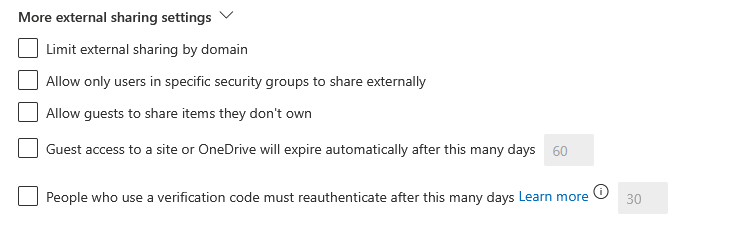
Review the other settings to check you are happy with them
Access control
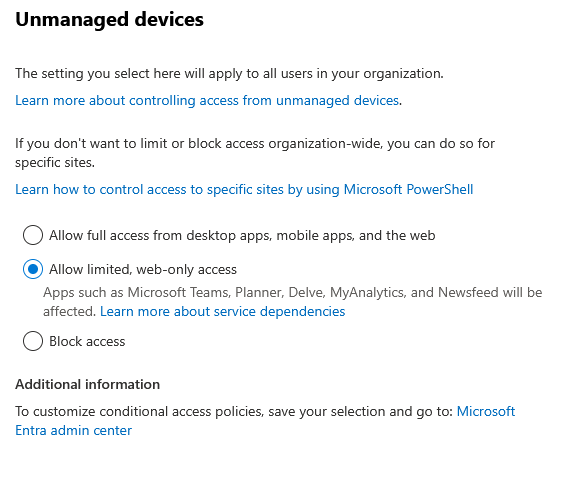
Unmanaged devices – Unless you want your staff potentially synchronising company data on their own devices, you want to change this.
If you are implementing MAM for Edge, allow web-only access, otherwise block completely (personally, I would go for MAM to reduce the complaints)
Microsoft 365 Apps
This can be accessed via https://config.office.com/
The first thing I’ll cover is policies and settings. You can configure them here or in the Intune portal. Both will work, the main difference is in this portal, they don’t require Intune to manage the devices. Either will be fine, pick which works best for you (I’m old fashioned and still use the Intune ones)
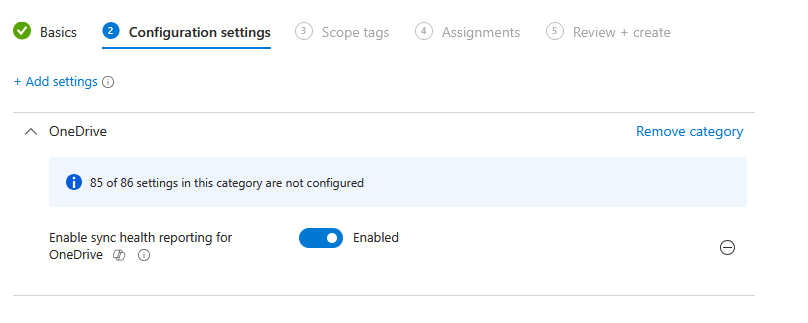
One thing we do need to configure in here, enable OneDrive Health Sync (you will also need to create an Intune policy to set the reg key)
https://learn.microsoft.com/en-us/sharepoint/sync-health?tabs=windows
Intune
To baseline or not to baseline
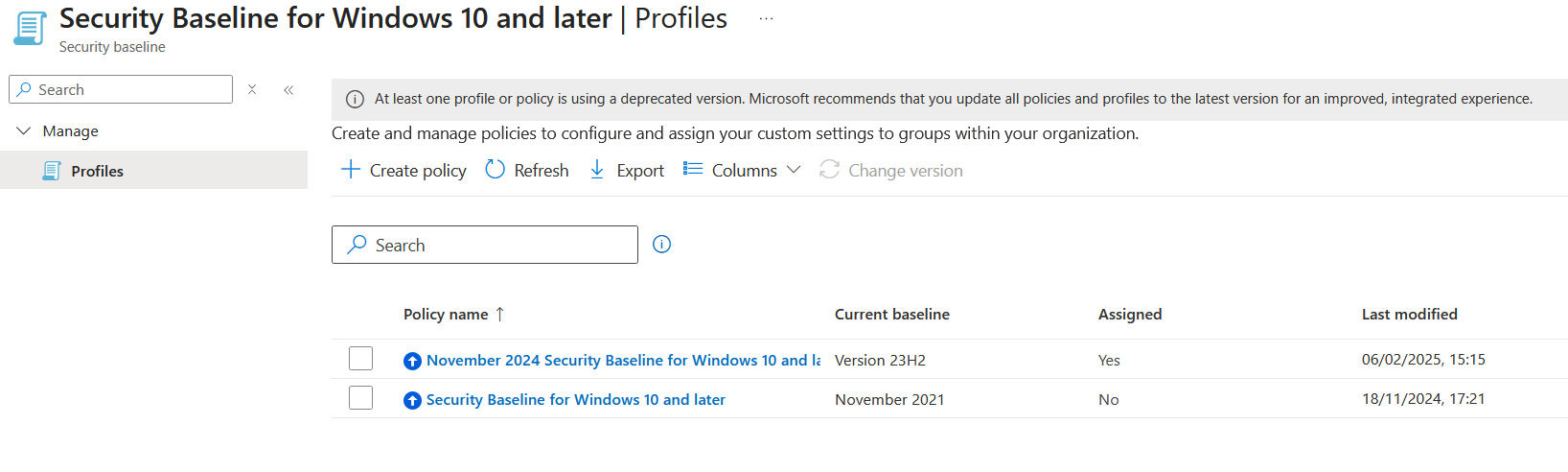
Intune includes Security Baselines for quickly getting started and securing the tenant, but I’m not a fan of using them. Most people just blindly enable settings without any idea of what they are doing and then find themselves having issues with day to day tasks.
Another issue is with each update, your baseline switches to read-only so if you need to make a change you have to update to the latest version or you are stuck with the old settings.
My preference is to either build your own, use them and CIS/NCSC/ACSC as guidance, or use a community offering such as EUCToolbox or OpenIntuneBaselines
M365 App Deployment
Yes, Intune has it built in with a pretty UI, but in my experience it doesn’t play well with Autopilot and also you lack supersedence, dependancies and all of the other fun bits of Win32 apps. Where possible go with Win32, it’s a set and forget option.
This is an excellent approach:
Or I have it packaged here:
https://github.com/andrew-s-taylor/public/tree/main/Install-Scripts/O365
App Deployment
I’ve covered this in another post, don’t use MSI Line of Business, package into Win32
Don’t make life hard for yourself, use a package manager
32-bit vs 64-bit PowerShell
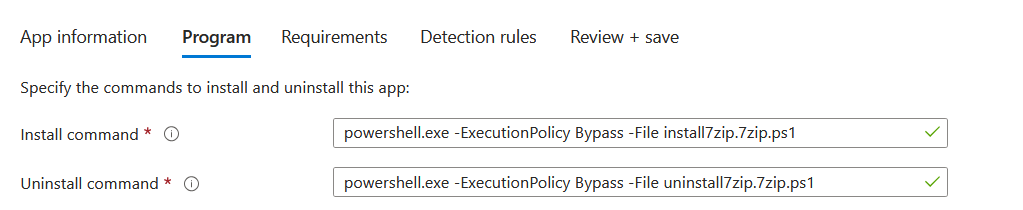
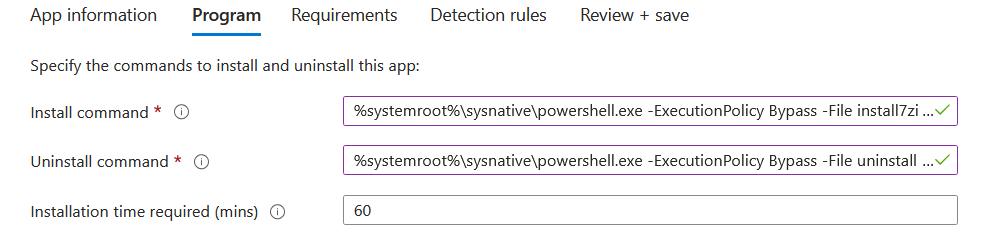
You have build your apps properly using PSADT and are deploying with PowerShell, but you can’t get your detection to work. If you have used powershell.exe in your install command, it is using the 32-bit instance so everything will be going into Program Files (x86) or WOW6432 in the registry. Use “%systemroot%\sysnative\powershell.exe” instead to hit the native 64-bit version.
Detection Scripts on apps installed in the user context
This I have covered in the blog post below, but if you have an app installed in the User Context and are using a Detection Script, that script will ALWAYS run in the system context so you need to do some magic to enumerate the logged in user. I have a function in the post to help 🙂
VPP App licenses
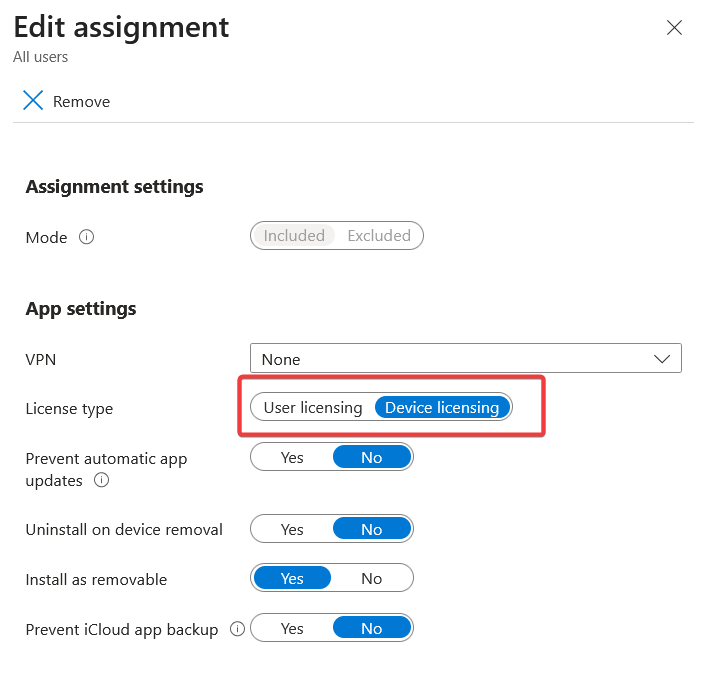
Now fortunately set by default, but when deploying VPP apps, make sure the license is set to Device not User. User Licensing will prompt your users to sign in with an Apple ID
Device Platform Restrictions
You don’t want users enrolling their own devices, all it takes it ticking a box (which is on by default) when signing into M365 apps and suddenly you have non-corporate devices in your tenant.
Navigate to Devices – Enrollment – Device Platform restriction and block all personal devices

Enrolling Devices
Whilst on the subject, don’t enrol devices with your IT account to “check everything it working”, don’t use Add Work or School Account and don’t use DEM to enrol all of the devices.
If you use an IT account, that is the “Enrolled By” account in Intune. You can change Primary User but not the Enrolled By. If the user is disabled, accounts will immediately become non-compliant and the only fix is a wipe and re-install…
Here is a guide I have on enrolling devices:
And one from Rudy on why not to use a DEM account
Device Clean-up rules
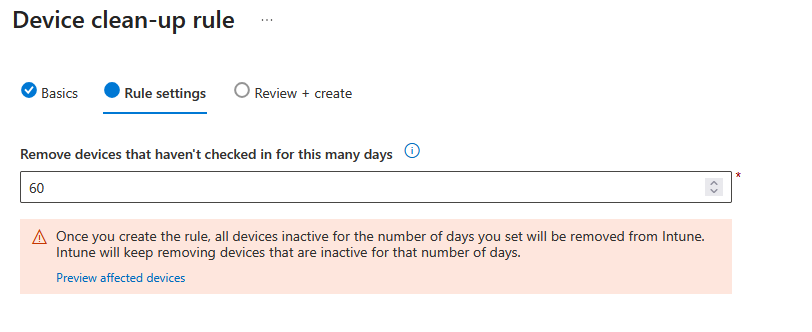
Whilst missing from Entra, you don’t want old devices sitting in your tenant so let the rules clean them up. Click Devices – Device clean-up rules and then configure policies for each platform you manage (or select All platforms if you are happy with the same throughout)
Default Compliance Settings
Click Devices – Compliance and then Compliance settings and make sure “Mark devices with no compliance policy assigned as” is set to Not compliant

Huge Compliance Policies
We’ve all been there, create one policy for each platform and tick everything that applies, quick and easy. But what if a setting needs a reboot to kick in, I know, add a grace period. Now EVERY setting has a grace period, that machine could have every piece of ransomware in the world, but it’s compliant.
Not only that, your user loses access because you’ve blocked non-compliant devices in CA (you have done that, right?). No problem, they go to Company Portal and it tells them why “Windows- Compliance”. Brilliant, now you’re in the Intune portal digging through the per-setting status to find out which has failed.
Do yourself a favour and split each thing into its own policy. Yes, it will take longer to begin with, but now your grace period is per setting and when a user falls non-compliant, they call up and say “It’s telling me my BitLocker is non-compliant” and you know exactly where to look!
Compliance without a Conditional Access Policy
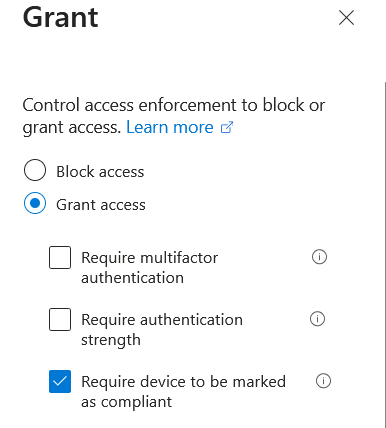
You have your lovely compliance policies in-place, but without a conditional access policy you’re just cluttering the Intune interface and doing nothing about it. That unencrypted device, or the one with more viruses than you’ve ever seen is happily roaming your tenant.
Please block them with CA
Admin Rights
Just don’t go there, package apps, use EPM (or ABR) and LAPS. Give your users admin and you might as well not bother with Intune, they can just remove your policies…
Windows Updates (Autopatch)
A no-brainer if licensed, let Microsoft handle updates for you
Key Policies
Like I said, I’m not running through building out a tenant, but these are what I see as must-have policies for a Windows environment:
- BitLocker
- Anti-Virus
- Attack Surface Reduction
- Firewall
- OneDrive KFM (if using it)
Have a read of my guide here too
Security Baselines
These look ideal if you are just starting out, speed-run through them, enable everything, walk away happy. Sadly that isn’t the case, these are security settings, they can break things! Need to make an exception for one setting for a group of users? That’s a duplicated policy with one setting change with the fun of include and exclude groups. That’s not even the worst bit, when the underlying baselines are updated, your policy becomes read-only and the only way to update it is to switch to the latest version, which means a whole load more settings to review. Do things properly, build out from scratch
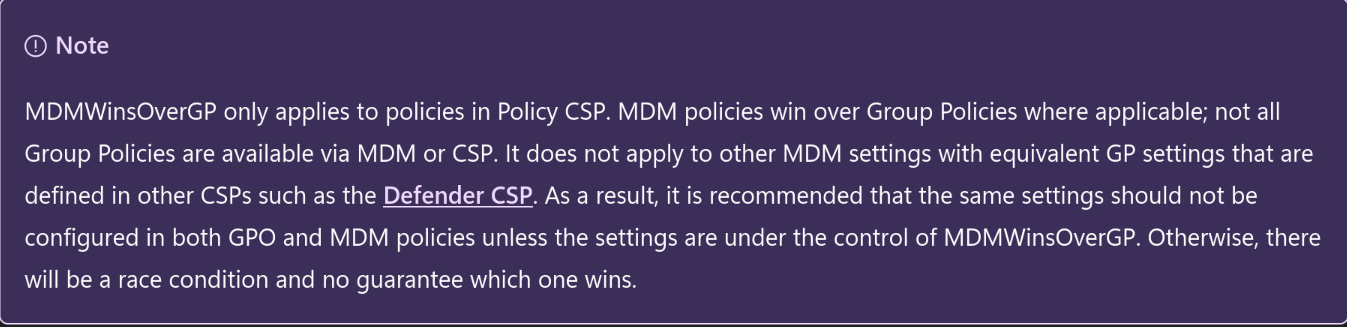
MDM Wins over GPO
This Settings Catalog policy
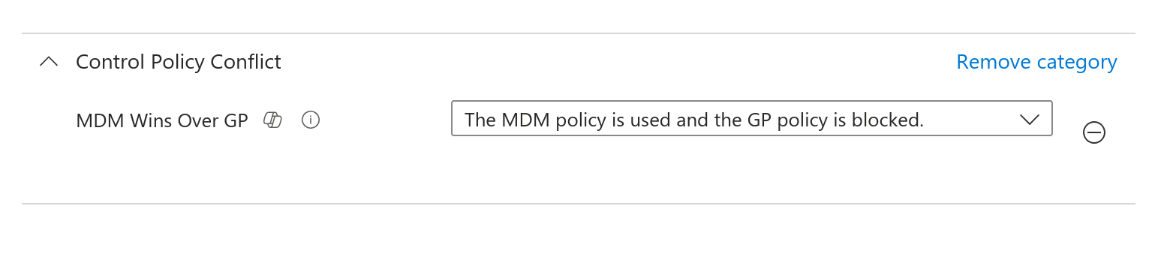
It only applies to a very small subset of policies and really can’t be relied upon:
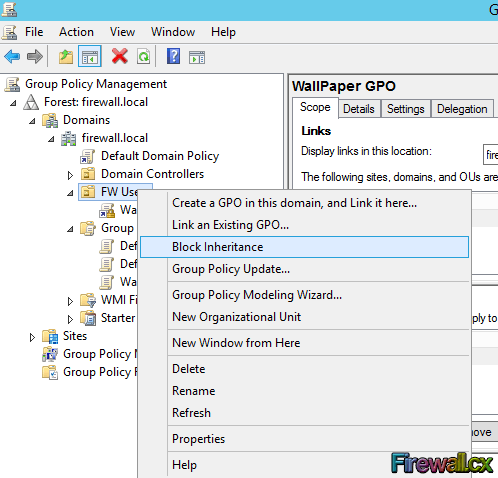
Use this instead:
ESP Stalling on Detecting Apps
A little known secret, if you find your ESP stalling on the Detecting Apps phase, this has nothing to do with your apps. This is where your Platform scripts run so if it is slow or failing here, check your scripts!
Policy Sets
These were introduced in the 1910 release (October 2019) and are still in preview nearly 7 years later. These things are never going GA and have a longer list of known issues than of features, best avoided
https://learn.microsoft.com/en-us/intune/fundamentals/policy-sets#policy-sets-known-issues
Scope Tags
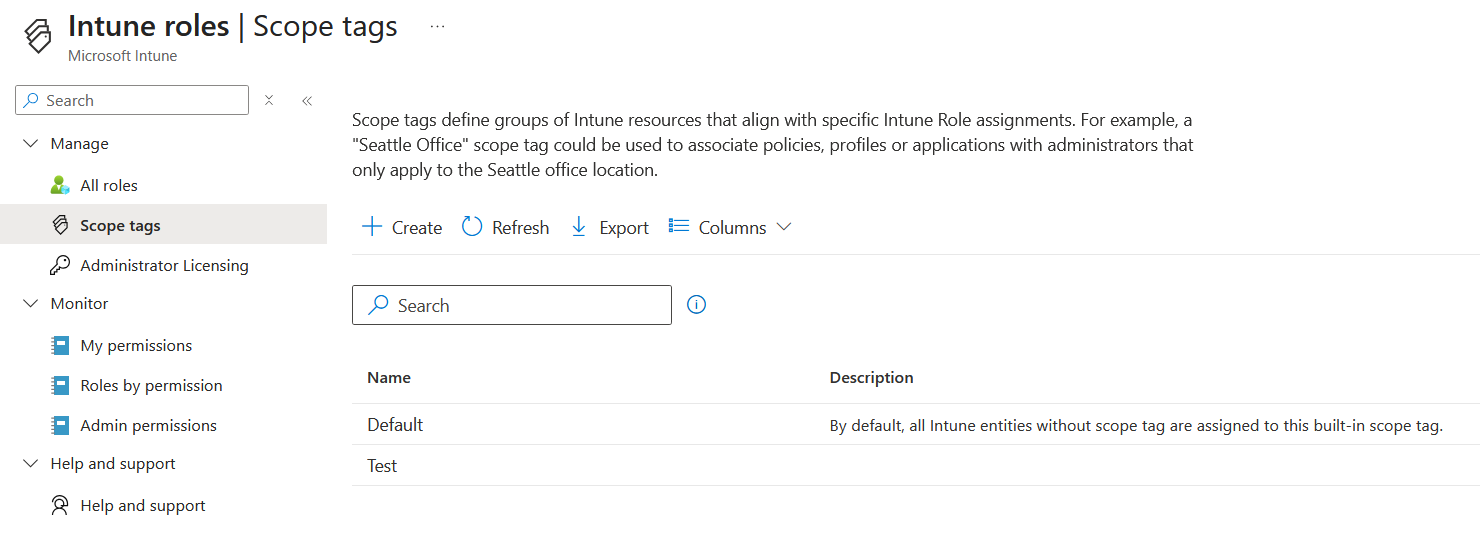
These are great for large environments, or where you need to restrict access on certain geographies, departments etc. But please implement them early, adding scope tags once you already have hundreds of policies, apps and devices is a job no-one wants to do.
Watch for that pesky default tag as well!
Microsoft Defender for Endpoint
If licensed, make sure MDE is connected with Intune and configure as appropriate via Endpoint Security – Microsoft Defender for Endpoint

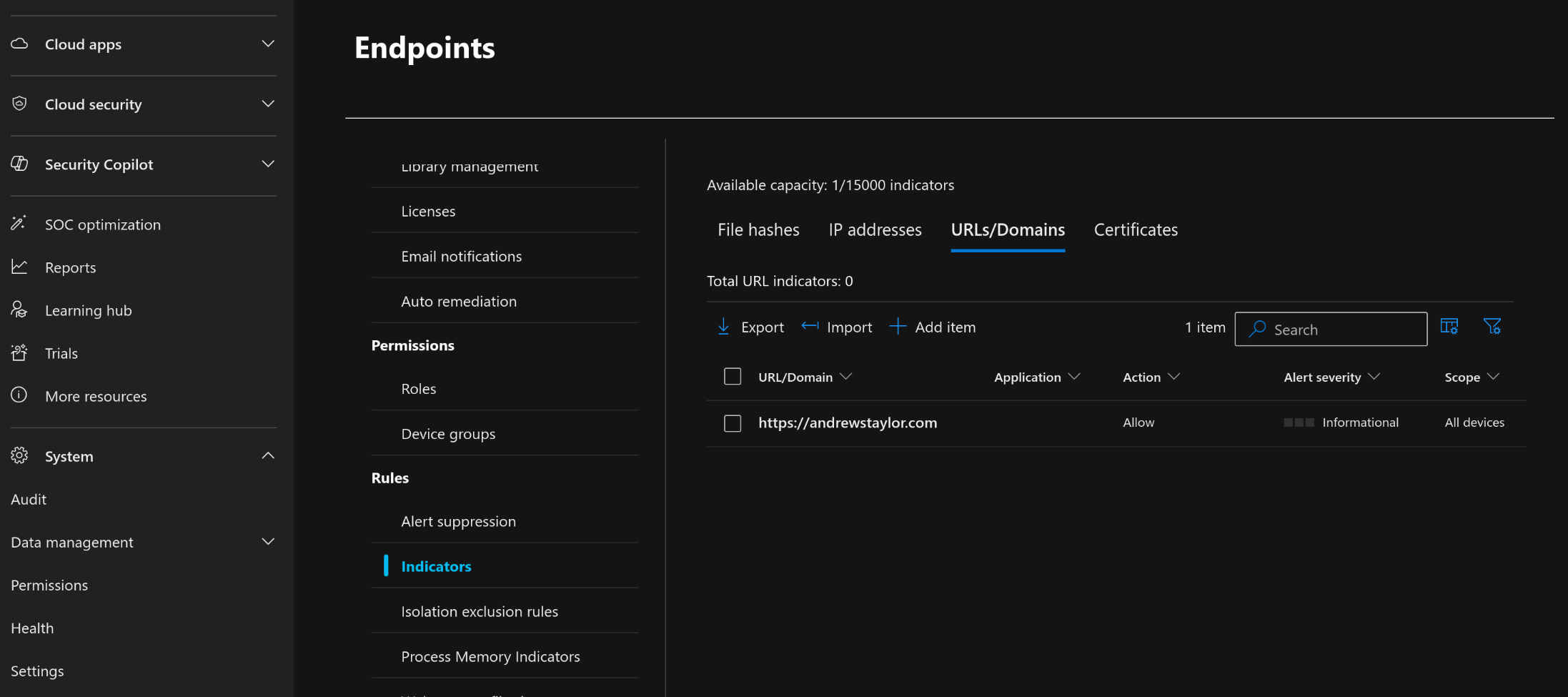
Blocking and Allowing websites
Did you know MDE has web filtering built in and can also block and allow specific sites? It is very well hidden though, you need to go to Settings – Endpoints – Indicators
Reporting
Click on Reports – Endpoint analytics and make sure it is enabled and collecting data (better to do it now so the data is there when you need it)
Apple Certificates
If you are using Apple VPP and ABM, watch your certificate expiry dates, you really don’t want those to expire! If the MDM cert runs out and you leave it more than 30-days, that’s a wipe and re-enrol for the whole lot!
Also, please don’t use a personal email in here unless it is your company and you are the only employee. If you ever leave, no-one will thank you for that

My daily checks tool will alert you about them and other things worth checking
https://dailychecks.euctoolbox.com/
Troubleshooting + support
This tool is actually a lot more useful than it looks, make sure you use it. You can see any obvious issues as well as MAM applicability at the user level
MDM Authority
Some old tenants are configured with O365 as the MDM authority, make sure yours is set to Microsoft Intune

If it isn’t, click this magic link:
https://intune.microsoft.com/#view/Microsoft_Intune_Enrollment/ChooseMDMAuthorityBlade
Service Health
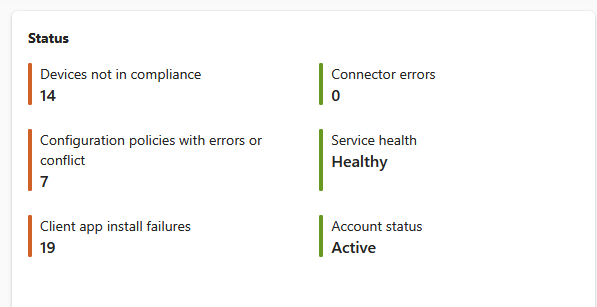
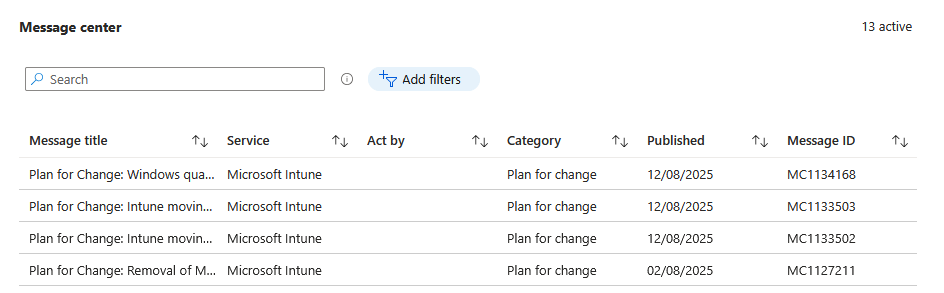
If you are hitting errors, check the Service health first, nothing worse than making loads of changes and it turns out to be a central issue. You can find it on your home screen or in Tenant Administration – Service health and message center (you can also see any planned changes here)
Keep up to date
Intune is constantly improving, make sure you keep up to date at the official blog:
https://techcommunity.microsoft.com/category/microsoftintune/blog/microsoftintuneblog
My newsletter also covers any community updates as well
On that subject, that’s all I can think of right now, but I will keep this updated…
Hello,
Thank you for this article!
I have a question about “Restrict non-admin users from creating tenants.” I would have set it to Yes rather than No. What do you think?
Yes, I put that in the text, but not in the screenshot 🙂
Will update it!
Hi see you use Enterprise state Roaming, but is it prevents not better to use the newly introduced “Windows Backup for Organizations”?
Yes, it’s one or the other so worth considering when deciding which to pick (you can of course change it in the future)
Thanks for the compact and good information.
Excellent Post – Thankyou
Good Andrew,sweet blog I love it.